
Groups and components
Groups bundle things that move together; components repeat one definition across many instances. Neither merges geometry.
Groups and components are how a model grows past a handful of boxes without becoming unmanageable. Both are organizational: they never merge geometry (that’s what booleans are for).
Groups
A group bundles objects (and other groups — they nest) into one selectable, movable unit.
- Create: select two or more things and choose Edit ▸ Group (
⌘G/Ctrl+G). - Dissolve: select a group and choose Edit ▸ Ungroup (
⇧⌘G/Ctrl+Shift+G); the members return to being independent, unchanged. - Edit the contents: double-click the group (or click Edit on the contextual dock). You’re now inside the group’s context: the rest of the scene dims, and selection and drawing are scoped to the group’s members. Press
Escto step back out one level.
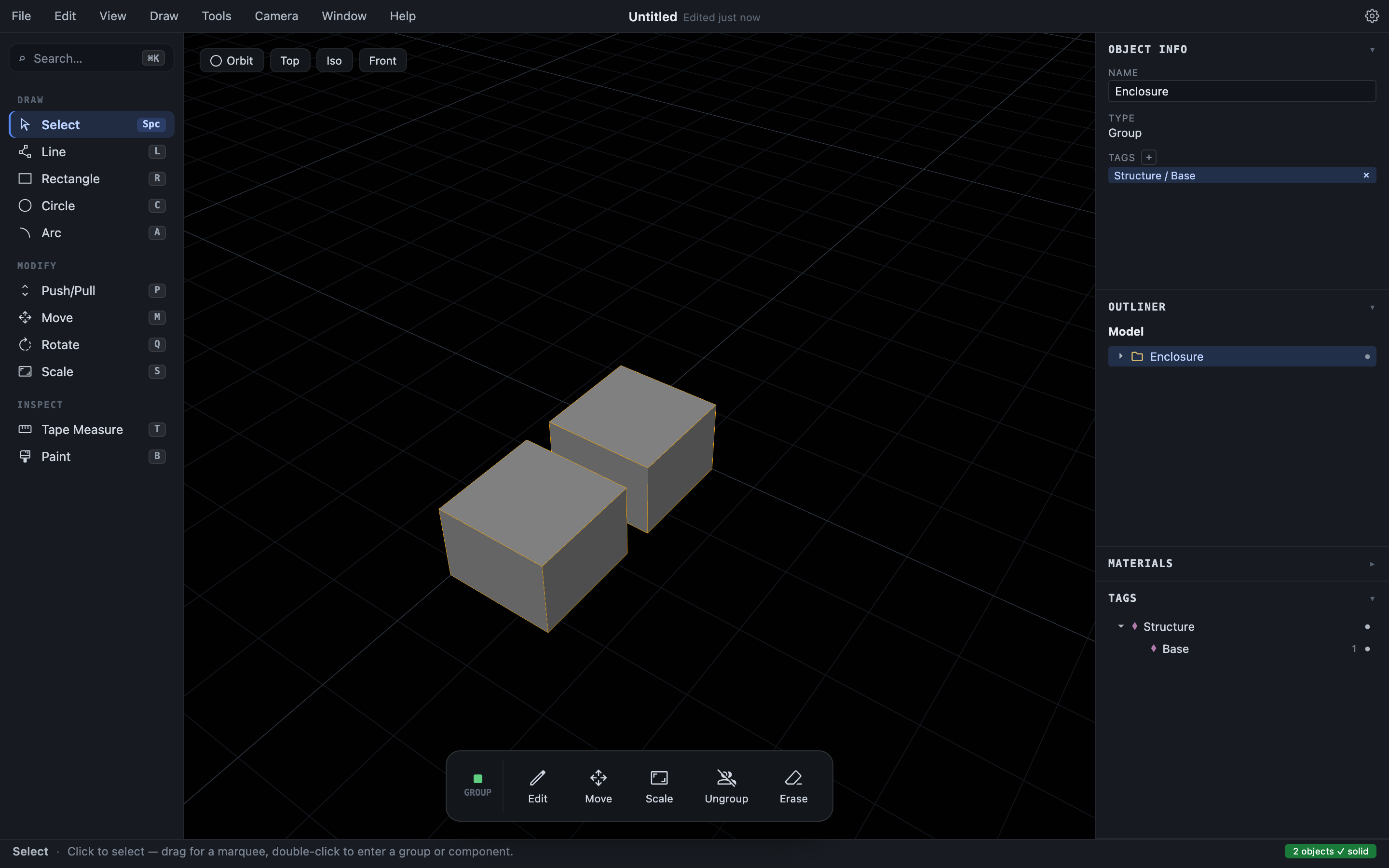
Moving, rotating, or scaling a group transforms everything inside it together. Hiding a group (the eye toggle in the Outliner) hides all of its contents. Groups are also handy purely as selection sets — a group’s name in the Outliner and Object Info makes big models legible.
Components
A component is shared geometry: one definition, any number of placed instances. Every instance has its own position, rotation, scale, and mirroring, but they all reference the same shape. Model one screw, place it eight times; fix the thread once, all eight update.
- Create a definition: select an object and choose Edit ▸ Make Component. The selection becomes the definition’s geometry, and what you had selected is replaced by the first instance.
- Place more instances: select an instance and choose Edit ▸ Place Copy; the new instance lands just beside the original, ready to Move into position. Or Move an instance with
Option/Altheld to drop copies where you want them (Move). - Edit the definition: double-click any instance. Changes — push/pulls, added detail, paint — appear in every instance when you step out.
Breaking the link
Two commands take an instance out of the shared-definition world, both available on the contextual dock when an instance is selected:
- Make Unique detaches this instance into its own new definition. Use it when one screw needs to be different from its siblings.
- Explode bakes the instance down into ordinary, independent geometry in place. The definition (and other instances) are unaffected.
In the Outliner
Groups appear as folders you can expand; component instances get their own hexagon icon. Double-clicking a row in the Outliner enters that item’s editing context, same as double-clicking in the viewport. The breadcrumb at the top of the Outliner shows where you are and offers one-click exits.
Current limits
Component definitions can’t yet contain other components, and booleans operate on objects rather than whole groups. Both are planned.