
Combining and splitting solids
Union, Subtract, Intersect, and the Slice tool. When to use each, and when Push/Pull does the job without a boolean.
Combining solids is always a command you issue; Core concepts explains why Hew never does it for you. Every input to these commands is a watertight solid, and so is every result.
Union, Subtract, Intersect
- With the Select tool, click the first object, then Shift-click the second.
- Choose Edit ▸ Union, Edit ▸ Subtract, or Edit ▸ Intersect.
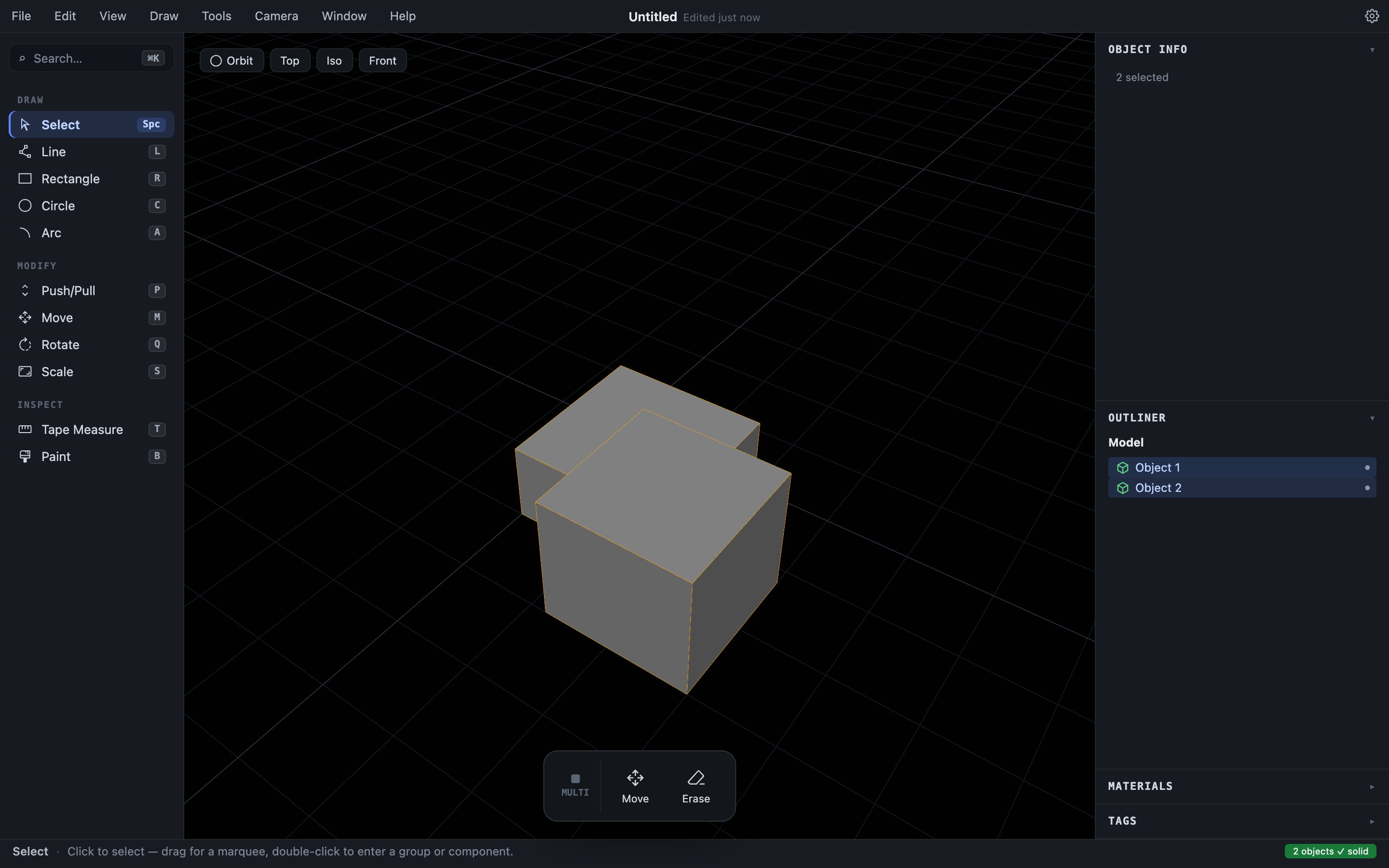
Union produces one object containing all material from both, and cleans up after itself: where two coplanar faces meet, the seam dissolves and they become a single face. Subtract cuts the second selected object away from the first. Intersect keeps only the overlapping material.
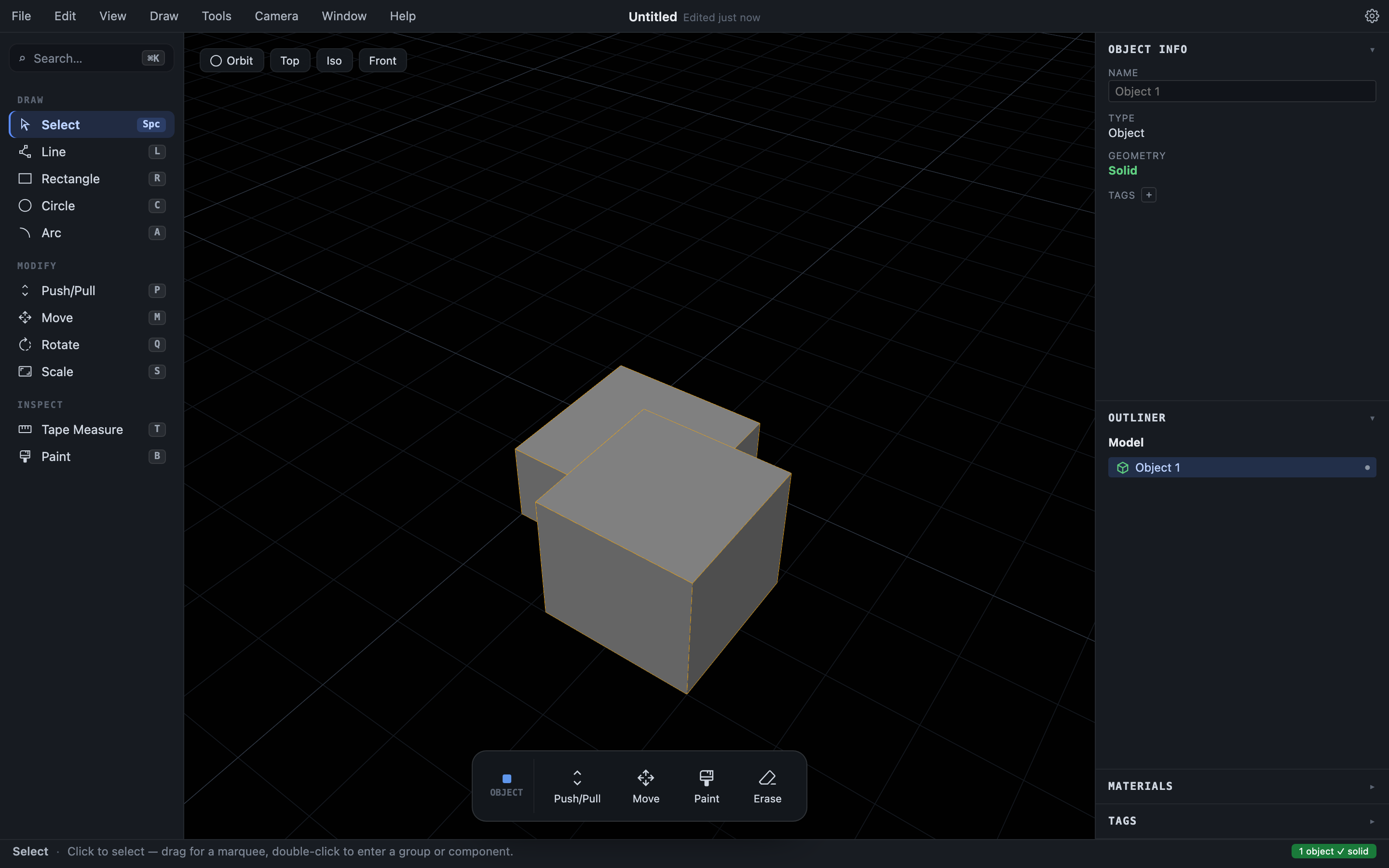
The result is a single new Object (Subtract can produce several, if the cut separates the remainder into pieces; each piece becomes its own solid). Painted materials survive the operation on the faces that survive. Like everything, booleans are undoable.
If an input isn’t solid, the operation is refused with an error naming the problem. Fix the leaky object first (check Object Info to find it).
Slice
The Slice tool (Tools ▸ Slice) is the opposite move: cut one solid into two independent, watertight solids along a plane. It’s the tool for splitting a model into printable halves.
- Activate Slice and move the cursor over your solid. The cutting plane previews live:
- Hovering a face lays the plane flat on that face’s plane.
- Otherwise the plane is perpendicular to a world axis: press
→for X,←for Y,↑/↓for Z (Z, a horizontal slice, is the default).
- Hold
Shiftto pin the current plane so it stops re-orienting as you move; pressShiftagain (orEsc) to release. - Position the plane — it follows the cursor’s snap point, and you can type an exact offset along the plane’s normal.
- Click on the solid to commit.
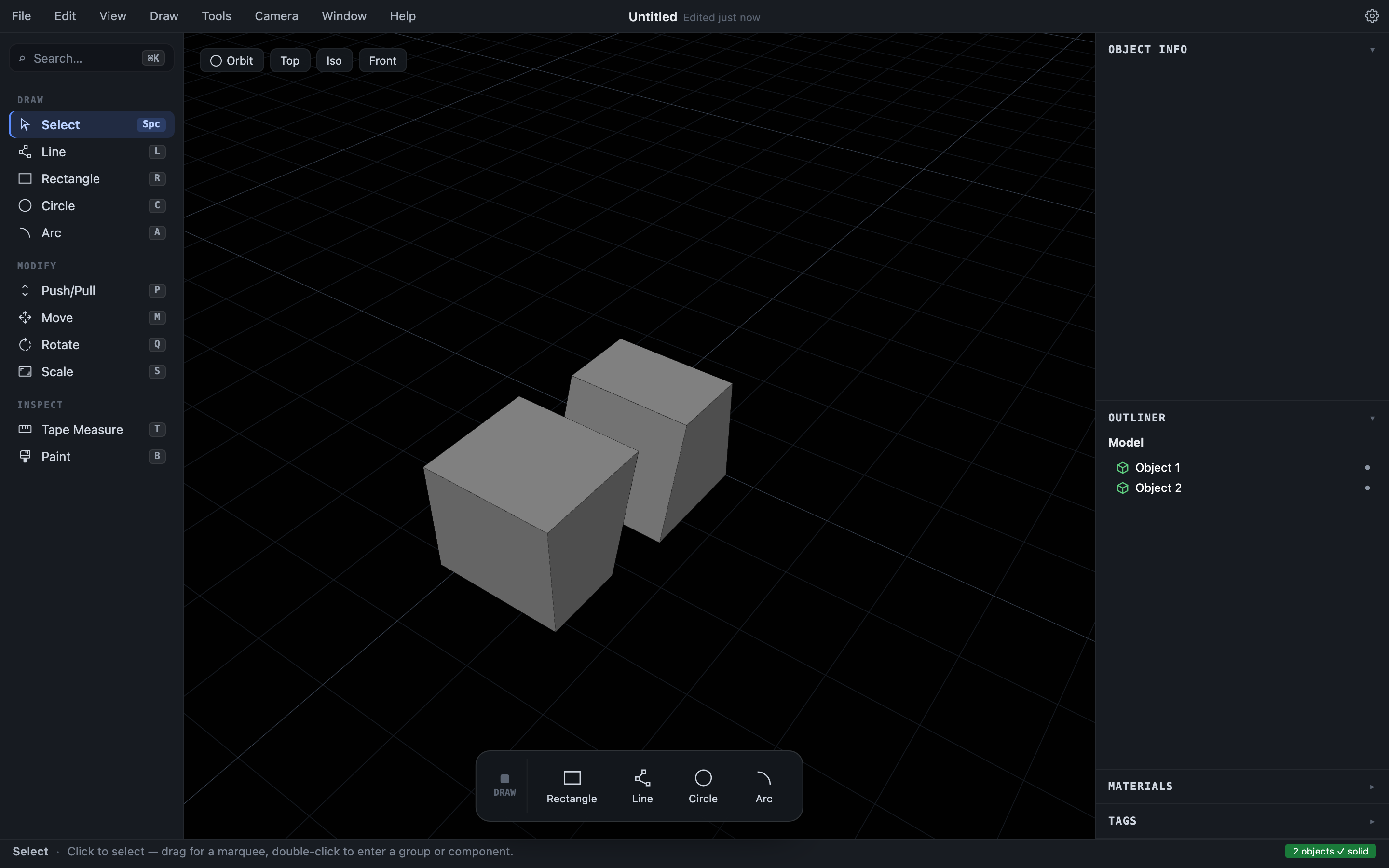
Both halves are complete, closed solids (Hew caps the cut faces), and one of them is selected afterward so you can immediately Move it apart. Slicing empty space, or a plane that misses the solid, is refused with a message.
Which tool when?
For a hole or a pocket you usually don’t need booleans at all: draw on the face and Push/Pull inward or through (Push/Pull). Union is for merging parts into one printable body. To cut a complex shape out of another, model the cutter as its own solid, position it, and Subtract. To split a model for the print bed, Slice and move the halves apart. And if you only want parts to stay logically together, don’t combine them at all — use a group.