
Settings and diagnostics
Units and theme, plus Debug Mode and a bug reporter that bundles everything a developer needs into one file.
Open Settings with ⌘, / Ctrl+,, from the menu (Hew ▸ Settings… on macOS, Window ▸ Settings… elsewhere), or from the command palette. Every control applies immediately (there’s no OK button), and settings sync across windows.
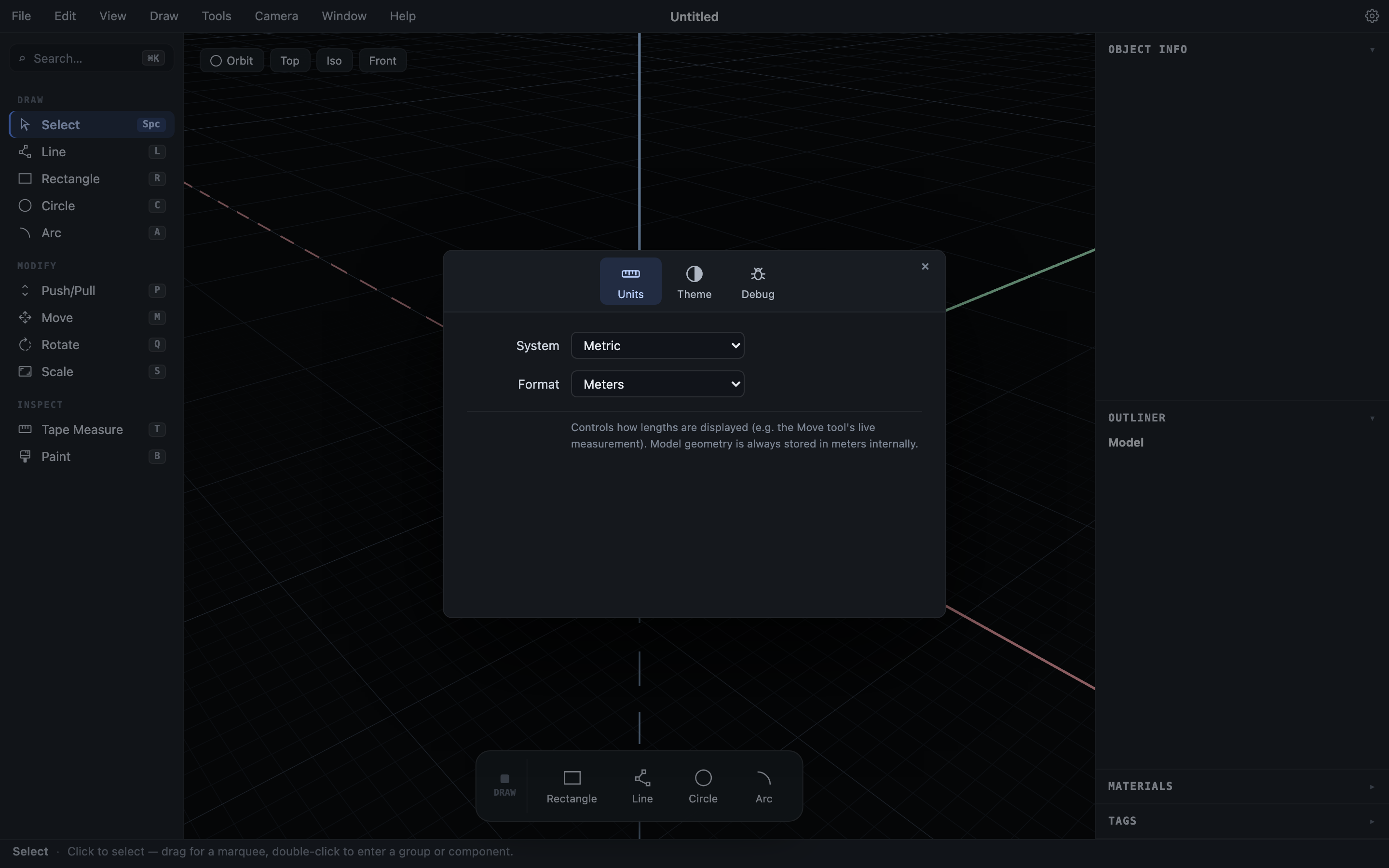
Units
Choose a System (Metric or Imperial) and a Format:
- Metric: Meters, Centimeters, or Millimeters
- Imperial: Architectural (
5' 3-1/8"), Fractional inches (60-1/8"), or Decimal inches (60.125")
This controls how every length is displayed and how bare typed numbers are interpreted. Geometry itself is always stored in meters, so switching formats never changes your model — and you can always type any unit explicitly regardless of the display setting (full input reference).
Theme
Auto follows your operating system’s light/dark appearance, live. Pick Light or Dark to override.
Debug Mode
The Debug pane’s Enable Debug Mode checkbox turns on deeper diagnostics, intended for when you’re chasing a problem or helping report one:
- A rolling diagnostic log — on desktop it’s written to the app’s log directory as
diagnostic.log; on the web there’s a Download Diagnostic Log… button. - Input recording, capturing low-level interaction events.
- Kernel torture mode, extra internal validation after every operation. Noticeably slower; leave it off for normal modeling.
Reporting a bug
Help ▸ Report Bug… assembles everything a developer needs into a single file: app version and system info, your current model, the recent diagnostic log, and the recorded input events. On desktop it’s saved to the app’s log directory (the confirmation toast shows the exact path); on the web it downloads. Attach that file to your bug report.
Hew’s kernel is deterministic, so a captured session usually reproduces a bug exactly. Reports with a bundle attached tend to get fixed fast.